Invite your team
Invite teammates, accept an invitation, change roles, remove access, and group people into teams.
ImplementedWorks in the app today, as this page describes.
Last reviewed against the app on
Everyone who works in the workspace has their own account and a role: Owner, Admin, Manager or Agent. The role decides what they can see and do. See roles and permissions before you choose.
Who can do this: Owner, Admin
Managers can see the team list but can't invite or change anyone. An Admin can't invite, change or remove an Owner.
Invite a teammate
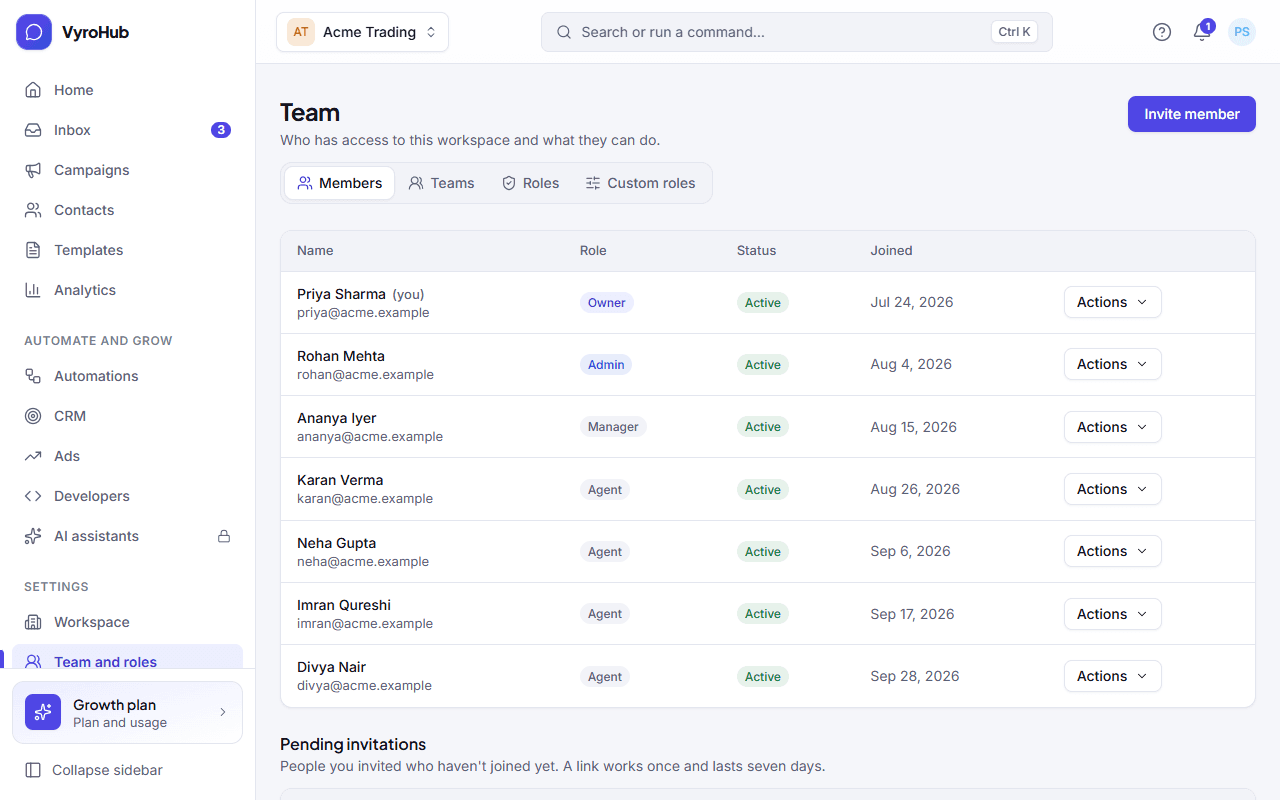
Go to Settings → Team and roles and choose Invite member.
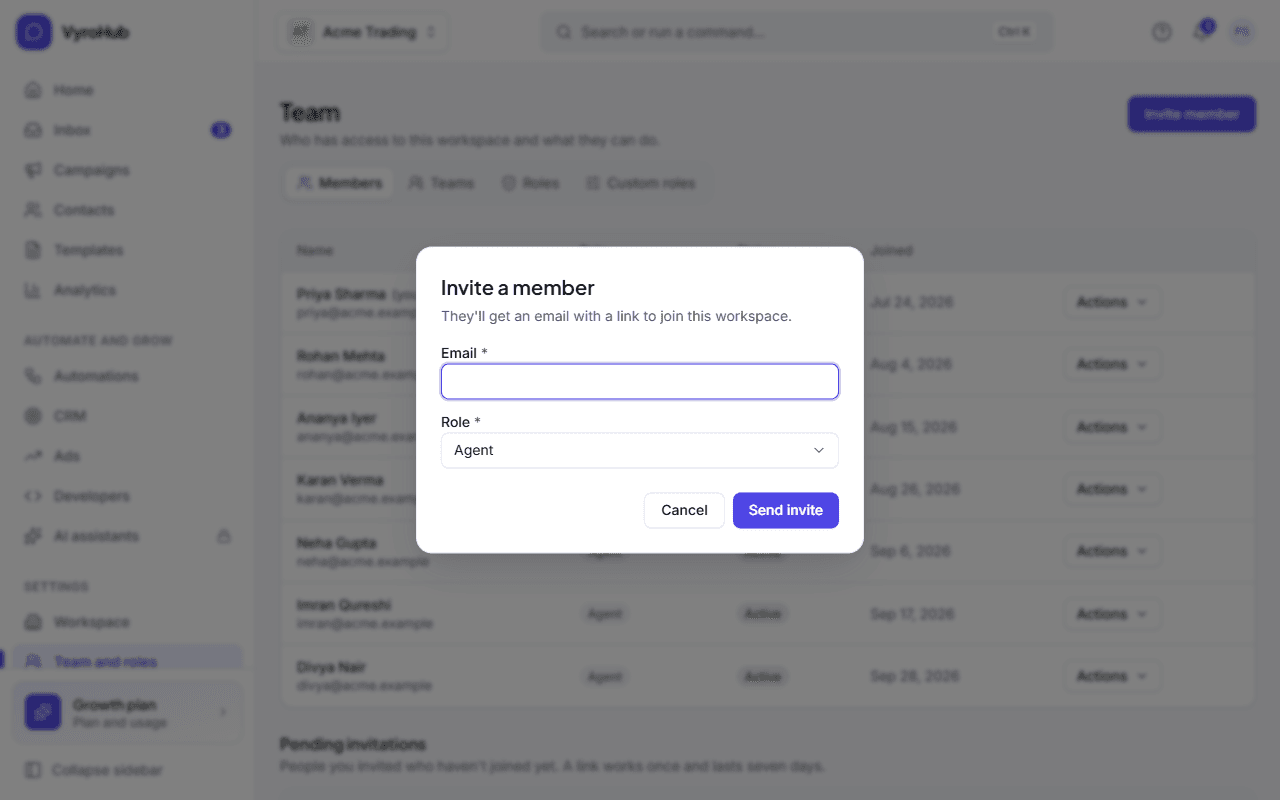
Enter their email address and choose their role.
Choose Send invite. You see "Invitation sent", and the invitation is listed as pending.
Accept an invitation (for the person invited)
Open the link in the invitation email.
New to VyroHub? Enter your name and a password (at least 12 characters) and choose Accept invitation. Already have an account? You see "You already have an account, so you'll sign in with it after joining." Sign in.
If your role is Owner or Admin, turn on two-step verification when asked.
Manage pending invitations
On Settings → Team and roles, a pending invitation can be re-sent (a new email goes out) or withdrawn (the link stops working).
Change a role or remove access
On Settings → Team and roles, open the actions next to the person.
Change role: choose the new role and Save role. Changing who can do what asks for a fresh code from your authenticator app.
Deactivate member: they lose access to this workspace immediately. If it's your own account, you are signed out. Their past work (messages, notes, campaigns) stays.
Group people into teams
Teams decide who gets which conversations and what a Manager or Agent can see. A Manager sees their teams' conversations; an Agent sees their own plus the unassigned ones in their teams.
Go to Settings → Team and roles, then Teams, and choose Create a team.
Give it a name people will recognise, like "Sales" or "Support".
Open Team members, choose who belongs to it, and Save members. A person can be in more than one team.
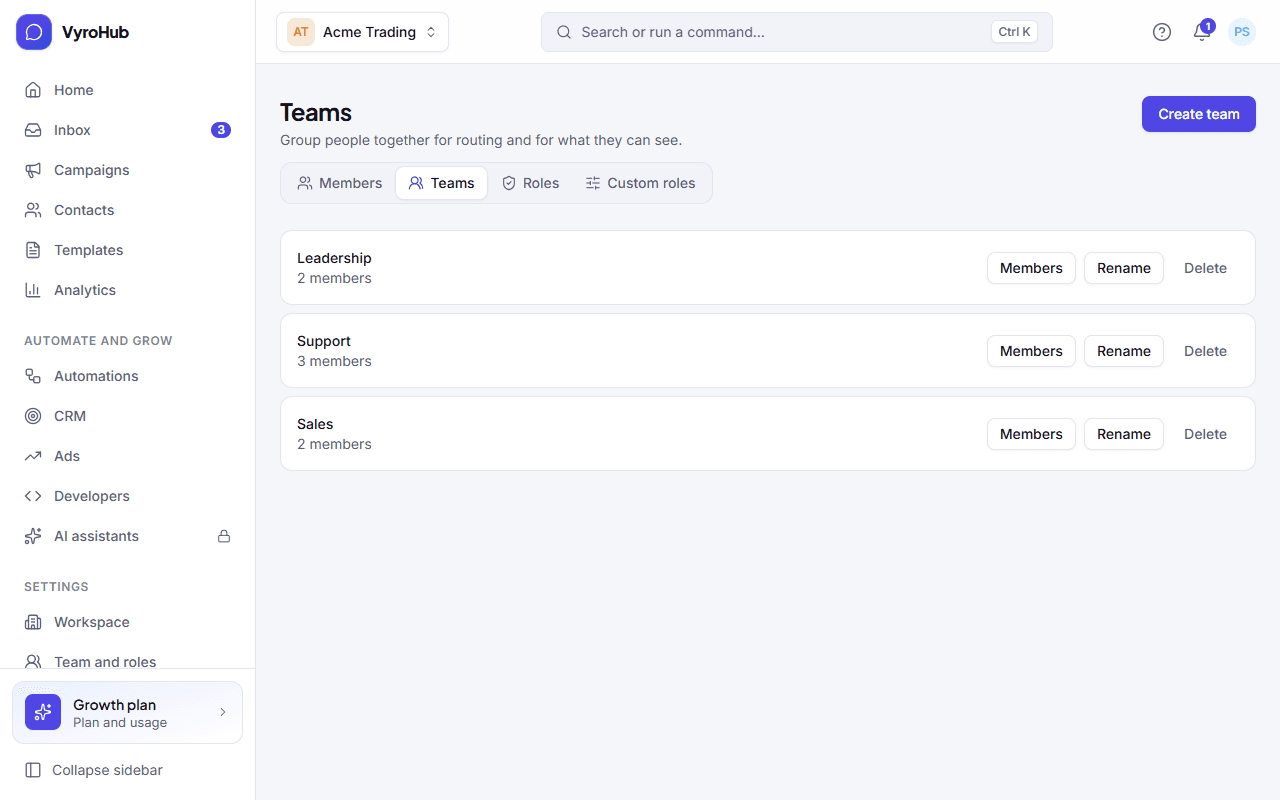
Renaming a team keeps its members. Deleting a team removes only the team: its members stay in the workspace.
When it works
The person appears in the team list with their role once they accept. Teams show their member count, and routing rules can send new conversations to them.
When something goes wrong
| What you see | Why | What to do |
|---|---|---|
| "This invitation has expired" | Invitations last 7 days. | Ask an Admin or Owner to send a new one. |
| "This invitation has already been used. Sign in instead." | The link was accepted before. | Sign in with that email. |
| "This invitation link isn't valid" | The link is broken, or the invitation was withdrawn. | Ask whoever invited you for a new link. |
| You can't make someone an Owner | Only an Owner can grant the Owner role. | Ask an Owner. |
| You can't remove or demote the last Owner | Every workspace needs at least one Owner. | Make someone else an Owner first. |
| "Couldn't load the member list" when editing a team | A short connection problem. | Close the dialog and try again. |
Limits
| Limit | Value | Set by |
|---|---|---|
| How long an invitation link works | 7 days | VyroHub |
| Re-sending one invitation | 3 times an hour | VyroHub |
| Owners per workspace | At least one | VyroHub |
| Team members on your plan | Shown on Settings → Billing and plan | Your plan |