Inbox settings
Labels, quick replies, auto-replies with business hours, and routing rules that decide who gets a new conversation.
ImplementedWorks in the app today, as this page describes.
Last reviewed against the app on
All of these live under Settings → Inbox settings.
Who can do this: Owner, Admin
Quick replies are the exception: anyone can make their own; shared quick replies need a Manager, Admin or Owner.
Labels
Coloured tags the team puts on conversations, like Complaint or Wholesale.
Open Labels and choose New label. Give it a name and colour, and save.
To delete one, choose delete next to it. It's taken off every conversation that has it and removed from routing rules. The conversations themselves aren't touched.
Quick replies
Answers you give often, ready to insert by typing / in a reply.
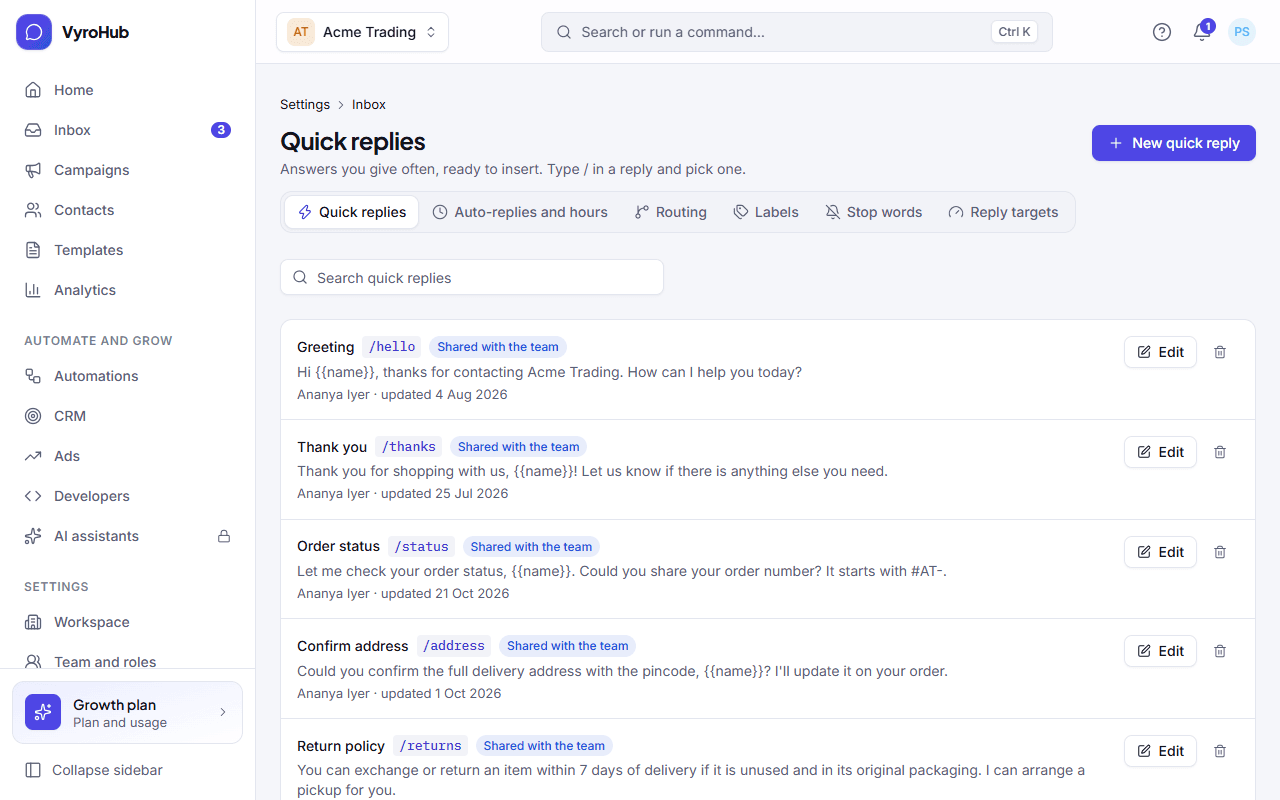
Open Quick replies and choose New quick reply.
Choose a shortcut (letters, numbers, - and _), a title, and What it says. Use {{name}} for the customer's
first name and {{agent}} for yours.
Choose Who can use it: Only me, or The whole team (Managers, Admins and Owners only).
Save. You see "Type /shortcut in any reply to use it."
Deleting a quick reply stops its shortcut working straight away. Messages already sent aren't affected.
Auto-replies and business hours
These go out as normal replies inside the 24-hour window.
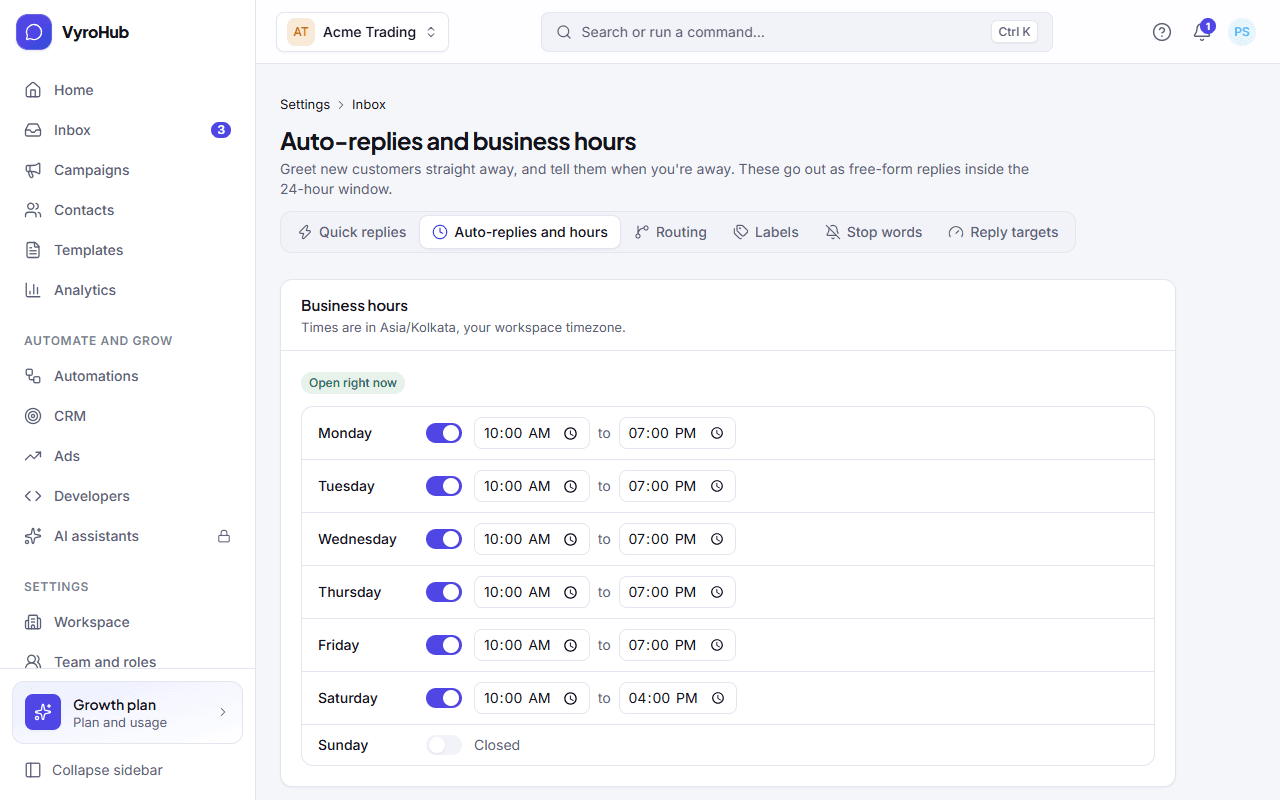
Open Auto-replies. Set your business hours for each day. Times are in your workspace's time zone; the page says whether you're "Open right now" or "Closed right now".
Turn on Send a welcome message and write it. It's sent once when someone writes to you during business hours.
Turn on Send an away message and write it. It's sent when someone writes outside business hours, so they know when to expect an answer.
Choose Save changes. They apply to the next conversation that starts.
Routing: who gets a new conversation
Rules are checked from the top, and the first one that matches wins.
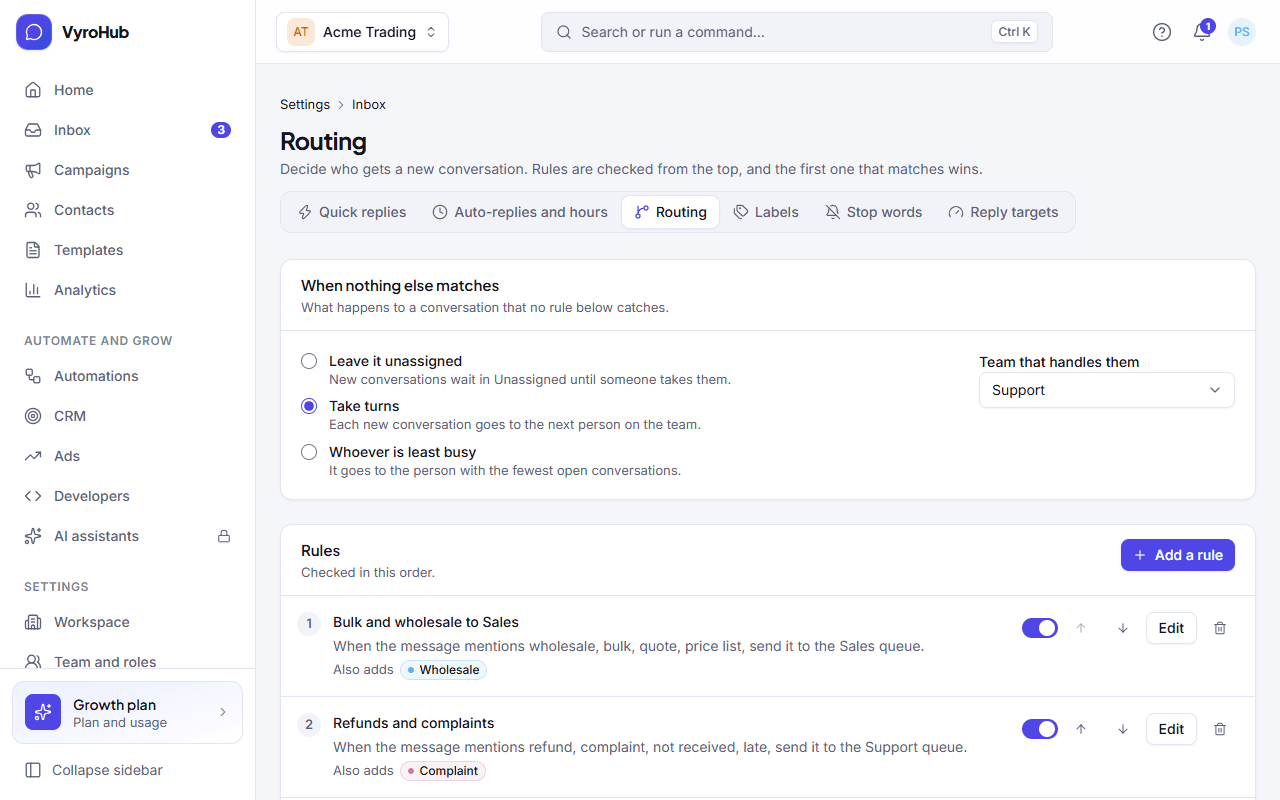
Open Routing. Under When nothing else matches, choose the default:
| Default | What it does |
|---|---|
| Leave it unassigned | New conversations wait in Unassigned until someone takes them. |
| Take turns | Each new conversation goes to the next person on the team. |
| Whoever is least busy | It goes to the person with the fewest open conversations. |
Choose Add a rule. Pick when it applies:
| When | Example |
|---|---|
| The message contains certain words | refund, return (separate words with commas; capital letters don't matter) |
| The customer's language is | Hindi |
| It arrives on a WhatsApp number | Your support number |
| Every new conversation | A catch-all |
| The conversation has a label | Wholesale |
Pick what happens: send it to a team's queue, give it to the next person in a team, or give it to one person. Optionally also add a label.
Order the rules with Move up and Move down, turn each on or off, and choose Save routing. It applies to new conversations from then on.
Each rule reads as a sentence, for example: When the message mentions refund, send it to the Support queue.
When it works
You see "Label created", "Quick reply added", "Auto-replies saved" or "Routing saved". New conversations follow the new settings.
When something goes wrong
| What you see | Why | What to do |
|---|---|---|
| "Give the rule a name." / "Add at least one word to look for." / "Choose who gets the conversation." | A rule is incomplete. | Fill in what's missing. |
| "Agents can't create shared replies. Ask a manager." | Shared quick replies need a Manager, Admin or Owner. | Make it "Only me", or ask a manager. |
| "Couldn't save the changes." | A short connection problem. | Try again. Discard changes undoes your edits. |
| "You can't change routing" / "You can't manage labels" | Your role can't. | Ask an Owner or Admin. |
Limits
| Limit | Value | Set by |
|---|---|---|
| Labels in a workspace | 100 | VyroHub |
| Quick replies in a workspace | 500 | VyroHub |
| Routing rules | 50 | VyroHub |
| A welcome or away message | 1,000 characters | VyroHub |
Setting how fast your team should reply, and seeing which conversations are late.