Two-step verification
Protect your account with an authenticator app, sign in with a code, use recovery codes, and manage where you're signed in.
ImplementedWorks in the app today, as this page describes.
Last reviewed against the app on
Two-step verification asks for a 6-digit code from an authenticator app (such as Google Authenticator or Microsoft Authenticator) after your password. Someone who learns your password still can't get in.
Who can do this: Everyone
Required for Owners and Admins: they can't use the workspace until it is on. Optional for Managers and Agents.
Turn it on
Start setup. Owners and Admins are taken here straight after signing in. Anyone else can go to Settings → Security and choose Turn on two-step verification. Choose Get started.
Scan the QR code with your authenticator app. If you can't scan, copy the setup link shown under it into the app.
Save your recovery codes. They are shown only once. Choose Copy all codes and keep them somewhere safe, like a password manager. Each code works one time and lets you in if you lose your phone.
Enter the 6-digit code your app shows and choose Confirm and turn on.
Sign in with a code
Sign in with your email and password.
On Verify it's you, enter the 6-digit code from your app.
No phone? Choose Use a recovery code instead and enter one of your saved codes.
When it works
You see "Two-factor authentication is now on for your account." From then on, every sign-in asks for a code.
Actions that ask for a fresh code
Some actions are risky enough that VyroHub asks for a code from your app again, even when you are signed in. The dialog is called Confirm it's you, and the action is recorded in your workspace's audit log.
| Action | Where |
|---|---|
| Change a teammate's role | Settings → Team and roles |
| Disconnect a WhatsApp number | Settings → WhatsApp numbers |
| Export more than 1,000 contacts | Contacts |
| Erase a contact's data | A contact's page |
| Change your plan, end your subscription, change the card | Settings → Billing and plan |
| Close the workspace | Settings → Data export |
See where you're signed in
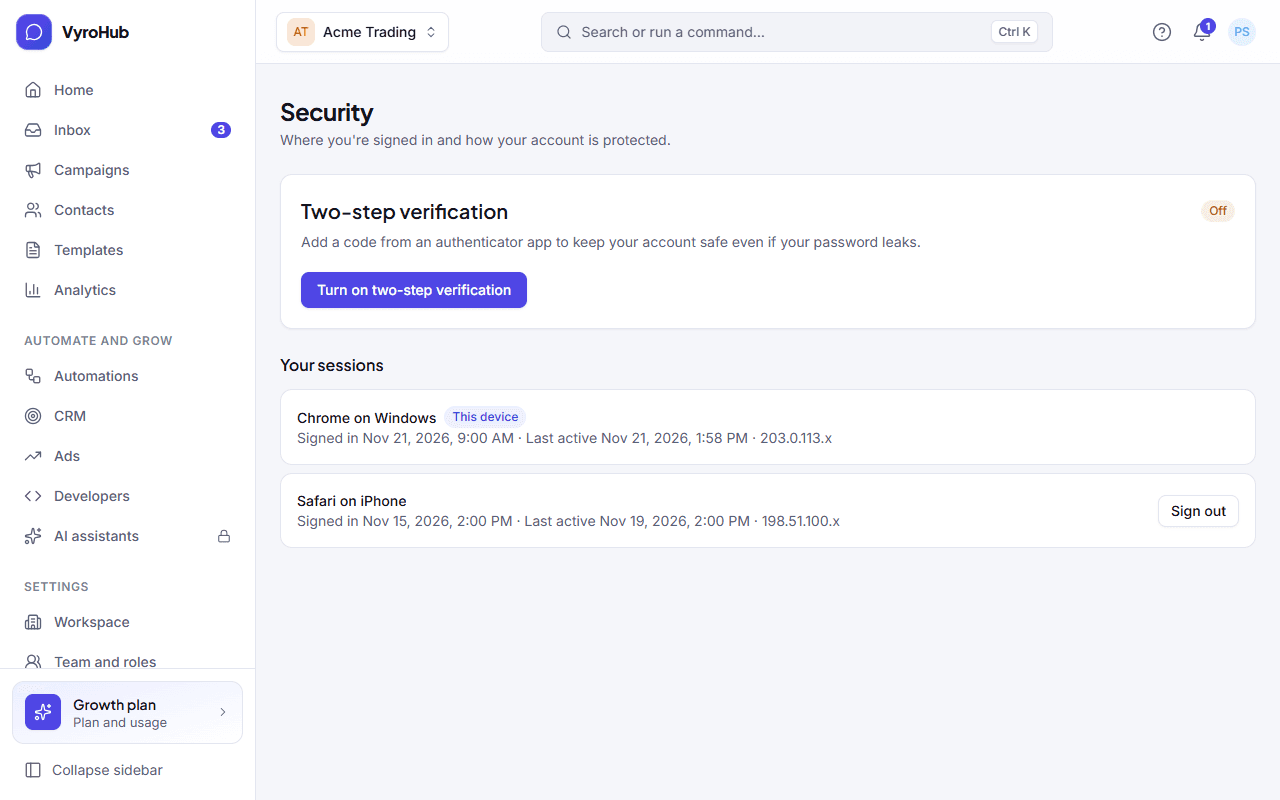
Go to Settings → Security. Your sessions lists every device signed in to your account, with the start of its network address. To sign one out, choose Sign out next to it. That device must sign in again.
When something goes wrong
| What you see | Why | What to do |
|---|---|---|
| "That code is incorrect or expired. Try again." | The code was typed wrong or changed before you finished. | Wait for the next code in your app and enter it. Check your phone's clock is set automatically. |
| "That recovery code is incorrect or has already been used." | Each recovery code works once. | Use another saved code. |
| "Too many wrong codes. Wait a few minutes and try again." | Several wrong codes in a row. | Wait a few minutes. |
| "Turn on two-step verification first." | You tried an action that needs a code, without two-step verification on. | Turn it on under Settings → Security, then try again. |
| You lost your phone and your recovery codes | Nobody can sign in as you without them. | Ask your workspace's Owner or Admin to help, or contact support. |
Limits
| Limit | Value | Set by |
|---|---|---|
| Time to enter the sign-in code | 5 minutes, then sign in again | VyroHub |
| Tries for one sign-in code | 5 | VyroHub |
| Recovery codes | Each one works once | VyroHub |