Create a campaign
Build a campaign in five steps, from name and sender to audience, template and values, checks, and when to send.
ImplementedWorks in the app today, as this page describes.
Last reviewed against the app on
Who can do this: Owner, Admin, Manager
If your role can build but not send, you see: 'You can build campaigns, but an Owner, Admin or Manager has to send them.'
Before you start
You need a connected WhatsApp number that can send, and an approved template. See connect a number and create a template.
Steps
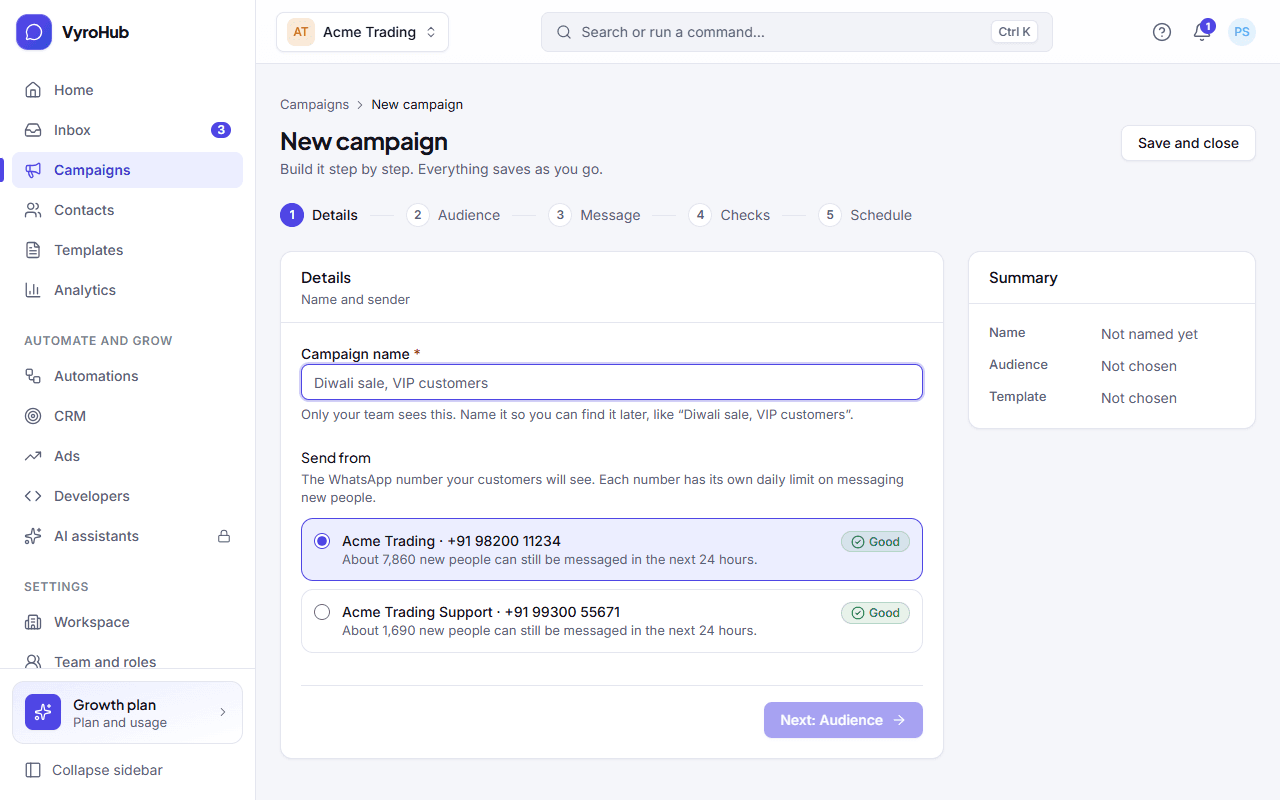
Start. Go to Campaigns and choose New campaign. (From a segment's page, Send a campaign starts one with that segment as the audience.)
Details: name and sender.
- Campaign name: only your team sees it. Name it so you can find it later, like "Diwali sale, VIP customers".
- Send from: the WhatsApp number your customers will see. Each number shows how many new people it can still message in the next 24 hours.
Audience: who gets it. Choose one:
| Audience | Who |
|---|---|
| Everyone in your contacts | Everyone. People who haven't agreed to messages are left out automatically. |
| A segment | A saved group, like "Returning customers in Mumbai". See segments. |
| A tag | Everyone with one tag, like VIP. |
You see how many people it is, and how many can be messaged.
Message: template and values. Pick an approved template. Then fill in the blanks: for each blank choose where its value comes from:
| Filled from | Example |
|---|---|
| Their first name | Priya |
| Their full name | Priya Sharma |
| Their city | Mumbai |
| One of your custom fields (Text, Number or One of a list) | Loyalty points: 1,250 |
| The same text for everyone (up to 200 characters) | DIWALI20 |
If someone has no value, a friendly fallback is used. The phone preview shows how the message will look.
Checks: before it goes. VyroHub runs the pre-flight checks: permission, the do-not-message list, your template, your number and your limits. Fix anything marked Blocks sending and choose Run the checks again.
Confirm permission. Tick "I confirm these contacts have agreed to receive these messages." This is saved with the campaign, with your name and the time. It adds to, and never replaces, the permission records on each contact.
Schedule: now or later. Send now, or choose Schedule it for later and pick a day and time in India time (IST). It starts by itself.
Send. The button says what will happen: Send campaign, Schedule campaign, or Send for approval (when an Owner or Admin must approve it).
You can leave at any point with Save and close; the draft keeps everything.
When it works
- Send now: "Campaign is sending: You can pause or cancel it from its report." The campaign's report opens.
- Scheduled: "Campaign scheduled: It will start at the time you chose."
- For approval: "Sent for approval: An Admin or Owner will review it. You'll be told when it's approved."
When something goes wrong
| What you see | Why | What to do |
|---|---|---|
| "No WhatsApp number connected" | There is no number to send from. | Connect a number first. |
| "This number can't send right now. Fix it in WhatsApp numbers first." | The number is restricted, disconnected or needs reconnecting. | Fix the number, or pick another. |
| "A campaign needs an approved template." / "No templates yet" | No approved template. | Create one and wait for approval. |
| "You haven't made a segment yet." | You chose A segment but have none. | Choose Create one, or pick another audience. |
| "Fix the problems marked “Blocks sending”, then run the checks again." | A check failed. | See pre-flight checks. |
| "We couldn't count this audience" / "The checks couldn't run." | A short connection problem. | Try again. |
| "Couldn't save the draft" | A short connection problem. | Try again; your changes are kept on the page. |
| "You can't create campaigns" | Agents can't. | Ask an Owner, Admin or Manager. |
Limits
| Limit | Value | Set by |
|---|---|---|
| Campaign name | 80 characters | VyroHub |
| Same-text value | 200 characters | VyroHub |
| Blanks in one template | 20 | VyroHub |
| People in one campaign | 50,000 | VyroHub |
| Scheduling | At least 5 minutes ahead | VyroHub |
| Templates a campaign can send | Plain-text templates with blanks in the body. Not yet: a picture, video or document header, a blank in the header, or a button that takes a value | VyroHub |
| Campaign recipients a day | Shown on Settings → Billing and plan | Your plan |