Connect a number
Connect your WhatsApp Business number through Meta's window, pick up where you left off, and fix a setup that stopped.
ImplementedWorks in the app today, as this page describes.
Last reviewed against the app on
Who can do this: Owner, Admin
Steps
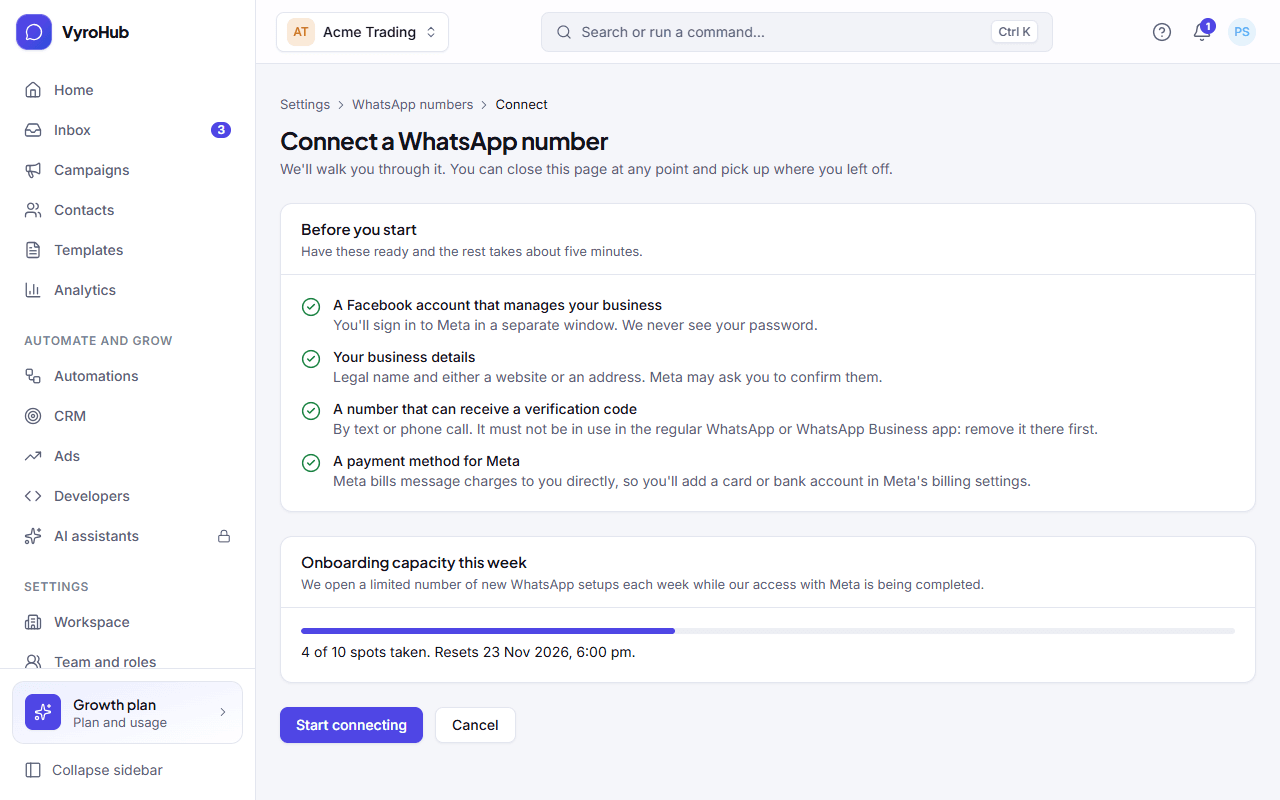
Go to Settings → WhatsApp numbers and choose Connect a number. (On a new workspace the page says "Connect your first WhatsApp number".)
Read Before you start and check Onboarding capacity this week. If there is room, choose Start connecting.
Choose Open Meta's window. A Meta window opens next to this one. If nothing opens, your browser may have blocked the pop-up: allow pop-ups for VyroHub and try again.
In Meta's window, sign in to Facebook, choose your business and your number, and verify the number with the code Meta sends. When Meta finishes, the window closes. VyroHub's page shows "Waiting for Meta…" meanwhile and carries on by itself.
VyroHub shows Setting up your number with its progress. This usually takes under a minute. You can leave the page; setup carries on without you.
When it works
You see "Your number is ready": your number can now send and receive messages. WhatsApp reviews the display name your customers see, which usually takes a few hours. From here you can View the number or Add your contacts next.
On Settings → WhatsApp numbers the number shows its health, its daily new-contact limit, and "Waiting for the first message" until a customer writes to it.
You didn't finish last time
If you closed the page part-way, the connect screen says "You didn't finish last time". Choose Continue where I left off to resume, or Start over to begin again.
When something goes wrong
When setup stops, VyroHub shows Setup stopped with what Meta said and one button for the next step:
| Button you see | What happened | What to do |
|---|---|---|
| Try again (with a wait time) | "WhatsApp asks you to wait." Meta asked for a pause before trying again. | Wait the time shown, then choose Try again. |
| Open Meta billing settings, then I've added it, continue | Meta needs a payment method on your business account. | Add a card or bank account in Meta's billing settings, then continue. |
| Continue where I left off | A step can be resumed. | Choose it; nothing is lost. |
| Start again | This attempt can't continue. | Start a new connection. |
| Contact support | Meta refused for a reason only support can sort out. | Contact support with the message shown. |
Other messages:
| What you see | Why | What to do |
|---|---|---|
| "Meta's window could not be opened." / "Couldn't open Meta's window" | The browser blocked the pop-up, or Meta's page didn't load. | Allow pop-ups for VyroHub, reload the page, try again. |
| "Meta could not complete the signup." | You closed Meta's window early, or Meta hit a problem. | Start again. Check the number isn't still in the WhatsApp app. |
| "This week's spots are taken. Try again after the date above." | The weekly number of new connections is used up (see limits). | Try again after the date shown. |
| "Meta isn't set up in this environment yet" | VyroHub's own Meta connection isn't configured. | Ask your administrator or contact support. |
| "This connection was set up by our team. Contact support to change it." | VyroHub's team connected this number for you. | Contact support for any change. |
| "You can't connect numbers" | Your role can't connect numbers. | Ask an Owner or Admin. |
Limits
| Limit | Value | Set by |
|---|---|---|
| New WhatsApp connections | A limited number each week (rolling 7 days), shown as "Onboarding capacity this week" | Meta, while VyroHub's access is being completed |
| Time to finish in Meta's window | About 30 minutes, then start again | VyroHub |
| Time for setup to finish after Meta | About 30 minutes, then the setup stops and tells you | VyroHub |
| Display name review | Usually a few hours |