Create a template
Write a template in the editor, with its header, blanks, footer and buttons, and send it to WhatsApp for review.
ImplementedWorks in the app today, as this page describes.
Last reviewed against the app on
Who can do this: Owner, Admin, Manager can write and save drafts
Only Owner and Admin can choose Submit for review.
Steps
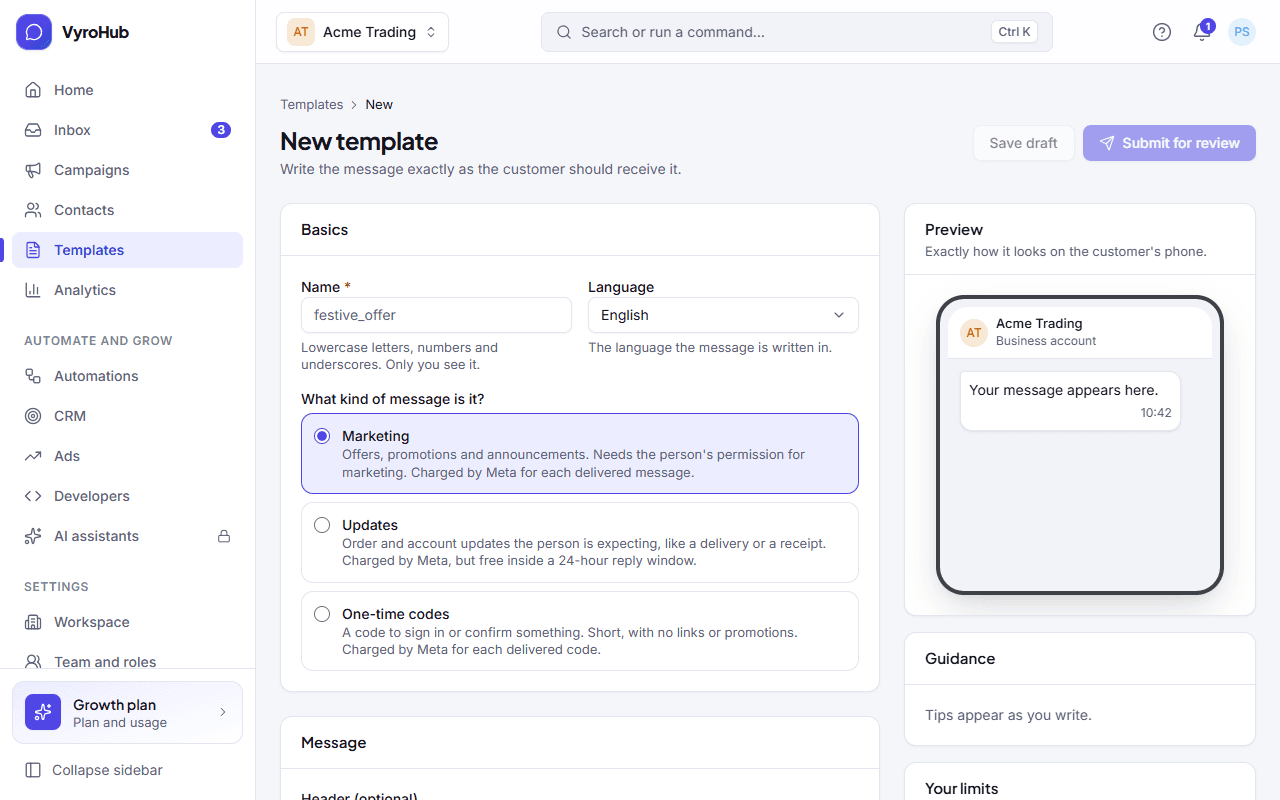
Go to Templates and choose New template (or Write a template).
Name it: lowercase letters, numbers and underscores, like diwali_offer_2026. Only your team sees the name.
Choose the language the message is written in.
Choose What kind of message is it?: Marketing, Updates (orders and account) or One-time codes. While you write, the editor may say "This looks like a … message" if the words suggest another kind.
Optionally add a header: text (up to 60 characters, at most one blank {{1}}), or a picture, video or document. For
a picture, video or document, upload a sample so WhatsApp can see what you'll send.
Write the body exactly as the customer should receive it. To add a blank that's filled per person, choose to add a
variable: it appears as {{1}}, {{2}} and so on. Example: Hi {{1}}, your order {{2}} is on its way.
Under Examples for your variables, give a realistic value for each blank (for example "Priya", "A-1042"). WhatsApp reviews the message with these values.
Optionally add a footer: a short line under the message, like "Reply STOP to opt out" (up to 60 characters).
Optionally add buttons (see the table below).
Decide whether to tick Let WhatsApp change the category if it disagrees. VyroHub never does this for you; if WhatsApp changes it, you'll be told what it means for cost.
Check the preview: it shows exactly how the message looks on the customer's phone. Fix anything listed under Must fix.
Choose Save draft to keep working later, or Submit for review.
Buttons
| Button | What it does | Limit |
|---|---|---|
| Quick reply | A tap sends a short reply back to you. | Up to 10 |
| Web address | Opens a link. Can end with a blank; give a real-looking example so WhatsApp can check it. | Up to 2 |
| Call a number | Calls a phone number. | 1 |
| Copy a code | Copies a code, such as a coupon. Example up to 20 characters. | 1 |
A template can have up to 10 buttons in all. Button text is up to 25 characters.
When it works
You see "Sent for review: WhatsApp usually replies within a few hours, and at most 24." The template shows In review. You're notified when WhatsApp replies. See review and template status.
If you choose Save draft you see "Draft saved", and the template stays a Draft.
When something goes wrong
| What you see | Why | What to do |
|---|---|---|
| "That name is taken." / "You already have a template with this name in this language." | Names are unique per language. | Choose another name. |
| "Fix these first" | Something under Must fix blocks the review. | Fix each item listed, then submit again. |
| "We couldn't use that file." | The sample is the wrong type or too big. | Use a JPG or PNG up to 5 MB, an MP4 up to 16 MB, or a PDF up to 100 MB. |
| "You can't create more templates right now" | You reached WhatsApp's limit on new templates (per hour or in total). | The message says when you can create more. Delete templates you no longer use. |
| "We kept your unsaved draft" | You left the page without saving. | Choose to keep it, or Start fresh. |
| "You can't write templates" | Your role can't. | Ask an Owner, Admin or Manager. |
| Submit for review isn't there | Managers can save drafts but not submit. | Ask an Owner or Admin to submit it. |
Limits
| Limit | Value | Set by |
|---|---|---|
| Body | 1,024 characters | |
| Header text | 60 characters, one blank at most | |
| Footer | 60 characters | |
| Buttons | 10 in all: quick replies up to 10, web addresses up to 2, call 1, copy code 1 | |
| Button text | 25 characters | |
| Web address | 2,000 characters | |
| Header sample | Picture JPG/PNG 5 MB, video MP4 16 MB, document PDF 100 MB | |
| New templates | A limit per hour and a total per account, shown on the Templates page as "Your limits" | |
| Review time | Usually a few hours, at most 24 |