Payment and invoices
Add or update the card, set your billing details and GSTIN, read and download invoices, and pay one.
PartialWorks, but a part is missing or not switched on yet. The page says which part.
Last reviewed against the app on
What's partial: saving a card and paying online need a payment provider, which isn't connected yet. Until then these actions can answer "No payment provider is set up." Billing details, invoices and PDF downloads work.
Who can do this: Owner, Admin can view and download invoices
Only the Owner can change the card, change billing details, or pay an invoice.
Add or update the card
Go to Settings → Billing and plan → Payment and details.
Choose Add a card (or Update card).
Enter the card in the payment provider's secure form. Card details never reach VyroHub; we only keep the card's brand and last four digits.
Enter a code from your authenticator app. You see "Payment method saved: … ending 1234 will be used from now on."
Set your billing details
These go on every invoice issued from now on. Issued invoices never change.
| Field | What to enter |
|---|---|
| Name on invoices | Your registered business name. |
| Send invoices to | The email address that receives invoices. |
| GSTIN | Your 15-character GST number, so your business can claim GST input credit. Leave it empty if you don't have one. |
| Address, City, State, Pincode, Country | Your billing address. The state decides how GST is split: CGST and SGST inside Maharashtra, IGST elsewhere. |
Choose Save details. You see "Billing details saved".
Read and download invoices
Invoices lists what VyroHub billed you for your plan (Meta's message charges are on Meta's own invoices).
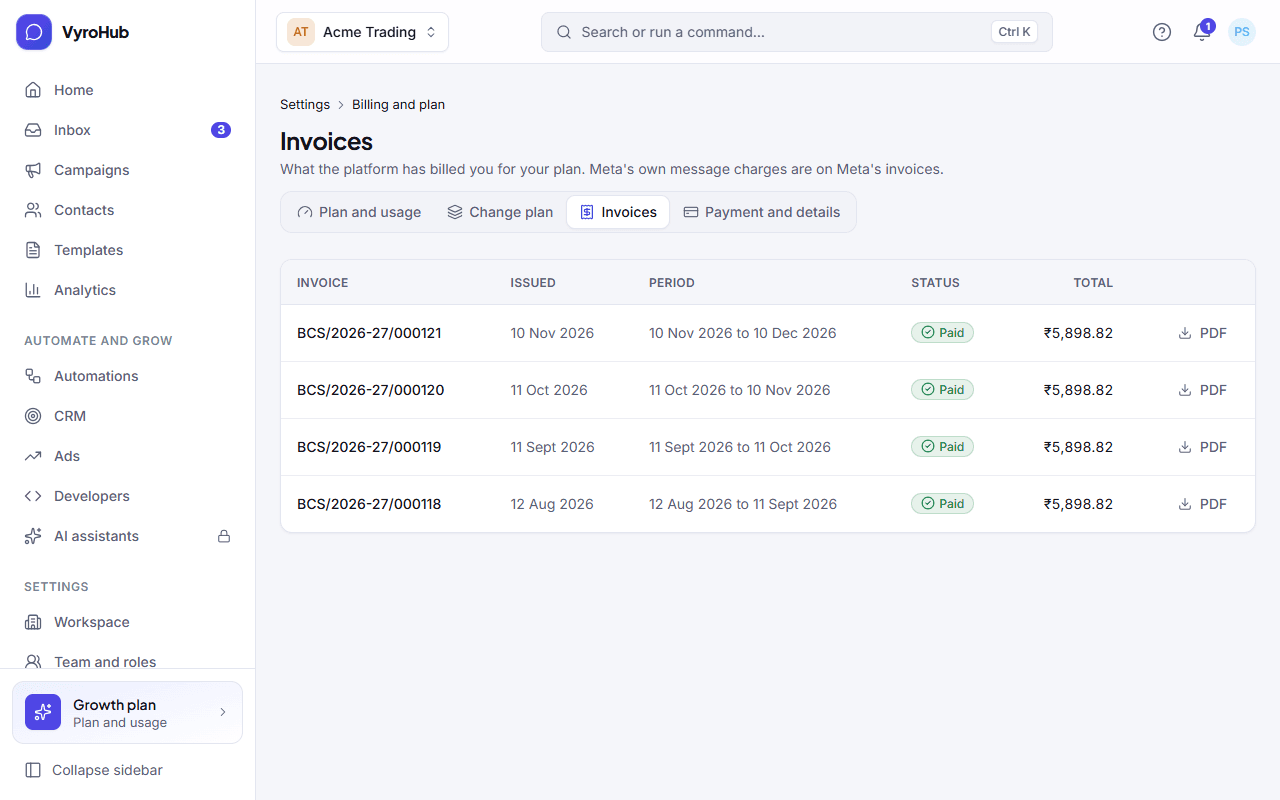
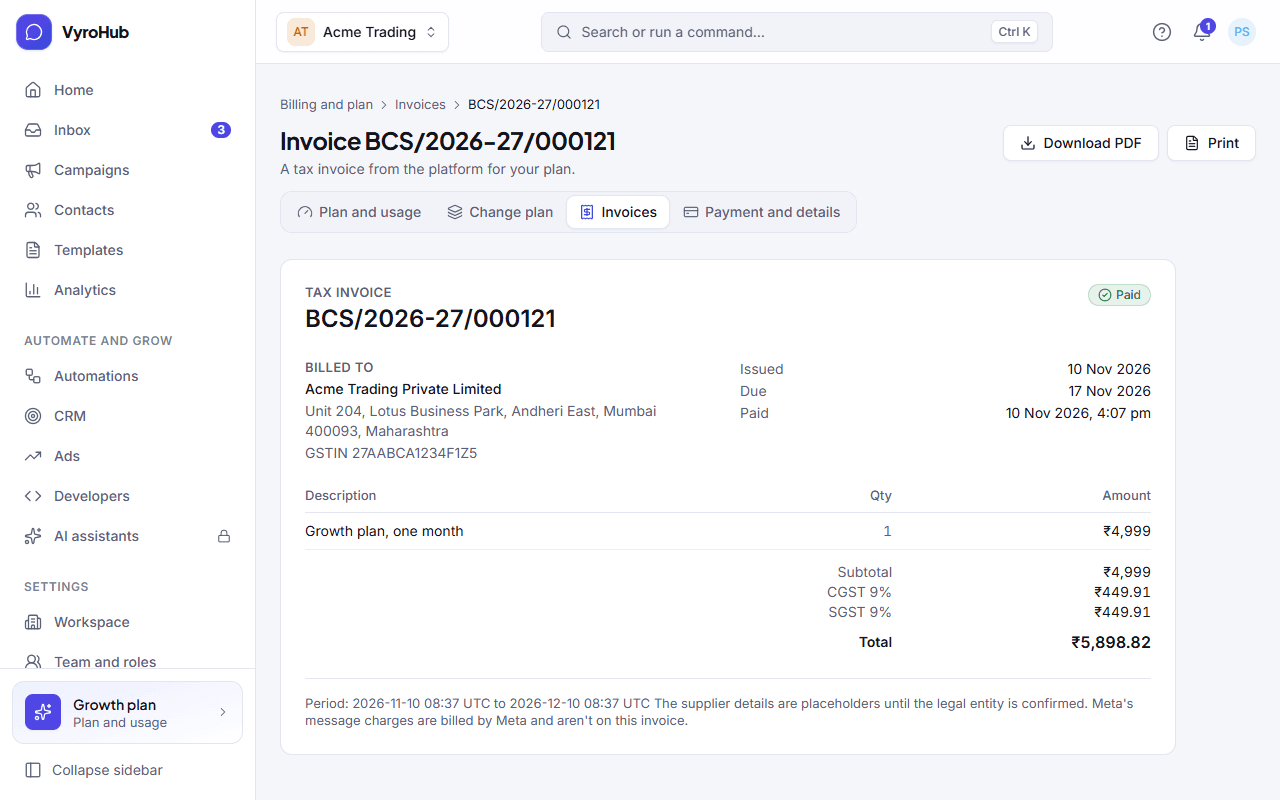
- Open one to see the tax invoice: invoice number, Billed to, the invoice lines, GST and the total.
- Download PDF saves it.
- Your first invoice appears when your trial ends or your plan renews.
- An invoice is due as soon as it's issued, and is charged to your saved card.
Pay an invoice
Open the invoice (an overdue one shows Pay now in the list).
Choose Pay ₹… now. You see "Charging your card…".
When it works
- Paid: "Payment received: Thank you. Everything is back to normal." If the workspace was past due or suspended, it is restored.
- Card saved: the card's brand and last four digits are shown.
When something goes wrong
| What you see | Why | What to do |
|---|---|---|
| "The payment didn't go through" | The bank declined the charge. | Update payment method, then pay again. Declined charges are also retried automatically (see missed payments): "We'll try again …, or as soon as you update the card." |
| "We couldn't confirm the payment yet. Nothing is charged twice; check again soon." | The bank hasn't answered yet. | Wait and check again. Don't pay twice. |
| "No payment provider is set up." | Paying online isn't switched on yet. | Contact support. |
| "No payment method yet" | No card is saved. | Add a card. |
| "This invoice isn't available" | It belongs to another workspace, or doesn't exist. | Go back to invoices. |
| "Couldn't download it" | A short connection problem. | Try again. |
| "Only the Owner can change billing details." | Your role can't. | Ask the Owner. |
Limits
| Limit | Value | Set by |
|---|---|---|
| GSTIN | 15 characters | Indian GST rules |
| When an invoice is due | As soon as it's issued | VyroHub |
| Changes to billing details | Only affect invoices issued afterwards | VyroHub |
| Currency | Indian rupees (₹) | VyroHub |